|
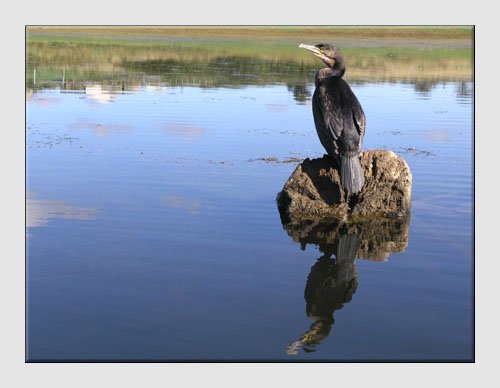
Improving Composition"More Pleasing on the Eye"The need for improving composition is very much a case of subjective judgement. There is no "correct" composition, although there are guidelines which have been compiled based upon experience and drawn from images that are very popular and considered pleasing on the eye. If you are not satisfied with the composition of a photograph then shoot it again if you can. This illustration shows how to use digital imaging to handle those situations where a retake is just not possible. There are guidelines on Composition in the Photography Techniques and Photography Tutor sections. SITUATION - A Cormorant relaxing in its habitat. An opportune shot taken whilst enjoying a morning's Kayaking on a Cornish reservoir.
If only -
Steps taken using Photoshop Elements version 5 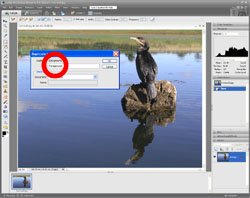
1 The first step is to extract the bird, the rock and their reflections. Begin by creating a duplicate layer with the image open in the Full Edit window. Select Duplicate Layer.. from the Layer menu, name it (in this example it is named Foreground) and click OK. 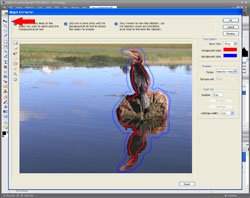
2 Open the Magic Extractor... window from the Image menu. The instructions at the top of this window explain how to use the tools. Use the Foreground Brush Tool to trace around the areas to be extracted and the Background Brush Tool to identify the areas to be deleted. 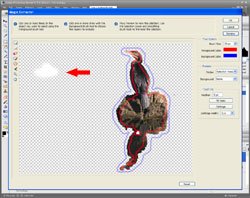
3 Click Preview to see how it looks and use the Eraser tools to clean up any areas which should (or should not in this example) be extracted. Improving Composition 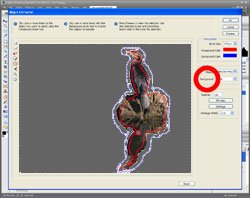
4 Use the various options from the Background drop list to help in identifying any areas which need cleaning up. Click OK when the extraction is complete. The next step is to fill in the area behind the extracted bird on the rock with water and bank, as if they were not there. 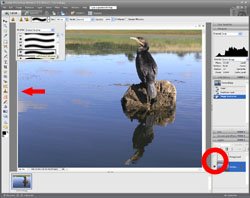
5 With the Foreground layer Visibility box unchecked and the Background layer selected, chose the Clone Stamp Tool with a fairly large soft brush (from the drop list at the top). 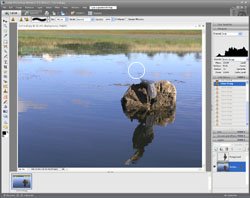
6 Gradually cover the bird etc. by cloning from the surrounding water and bank. More information about cloning is available in the Remove Distractions example. 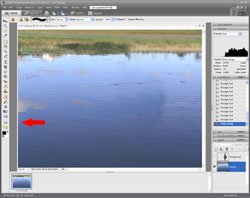
7 Any hard edges can be smoothed out using the Smudge tool. Tip - Drag the tool along the lines of any ripples in the water that need smoothing. 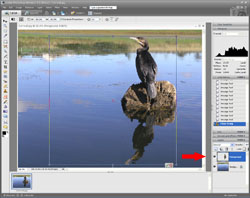
8 Select the Foreground layer in the Layers palette and check its Visibility box. Prepare to resize and reposition the Foreground by selecting Scale from the Image/Resize menu. 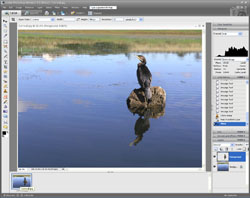
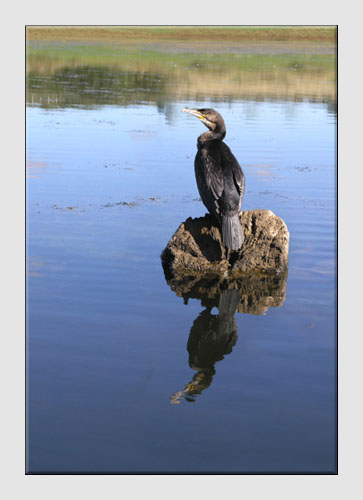
9 Click and drag the Resize box to reposition the layer and the corner handles to resize it. (Avoid using the central handles as this will distort the layer.) Click the green tick at the bottom right of the box or press enter when the changes are complete. This composition leaves more space around the main subject and displays it in its habitat - an ideal wildlife image. The final step shows how to size and convert it to portrait format, if this is preferred. More information about sizes is available in the Image Sizing example.
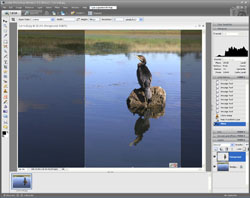
10 Select the Crop tool and specify the image size required in the options boxes at the top together with the resolution. Drag the tool across the image and adjust until the desired image is obtained. Double click to complete. Improving Composition
Remember to save the new image with a different name so as not to overwrite the original. Click here to add this page to your favorites in case you need help improving composition again.
This example is just one of the many ways in which Photoshop Elements or similar software can be used to help you make better photographs. Return from Improving Composition to the Photo Editing page. |

 |

| Image of the Month |
 |
| Click here to download it. |
| Find It |

Custom Search
|
| All of the advice, tutorials, masterclasses and ideas on this website are available to you at no charge. Even so, its upkeep does incur costs. |
|
| If you feel that the site has helped you then any contribution you make, however small, would go towards its ongoing maintenance and development. Thanks for your help. |
| Book of the Month |
  |
| Click here to read the review. |